
Fix Email Stuck in Outbox in Australia, When to Call a Technician

Updated: Oct 19
Toggle Work Offline off (or check your Wi-Fi), then hit Send/Receive → Send All. That single move clears the vast majority of stuck messages because the client is either disconnected, waiting on a large attachment, or paused by a misbehaving add-in. If Send All doesn’t move it within a minute, work through the checklist below before you touch anything more drastic.
TL;DR:
Over-sized or malformed messages often block the entire Outbox, so deleting or resending just that one attachment can clear the backlog.
Checking and ensuring “Send immediately when connected” is enabled prevents messages from sitting idle in the Outbox without manual intervention.
Connection issues, such as being in Work Offline mode or network blocks on SMTP ports, are common causes and simple fixes like toggling offline mode or switching networks can resolve them.
Add-ins and corrupt data files can hinder sending; starting Outlook in Safe Mode and disabling add-ins helps identify and eliminate the problem.
Persistent errors or repeated sync failure codes indicate server-side issues requiring expert assistance rather than prolonged local troubleshooting.
Table of Contents
Try This 60-Second Checklist Before Anything Else
Most emails stuck in outbox situations resolve with something embarrassingly simple. Run through these in order, and stop as soon as one works.
Check Work Offline status. In Outlook, look at the bottom status bar for “Working Offline” or “Disconnected.” Click Send/Receive → Work Offline to toggle it off, then confirm you actually have a live internet connection.
Force a manual sync. Click Send/Receive → Send All. This overrides the client’s normal schedule and pushes everything sitting in the queue right now.
Open the stuck message and check for a giant attachment. If it’s a 30MB video file or a folder of high-resolution photos, that’s very likely the culprit.
Drag the message to Drafts instead of leaving it in the Outbox. Editing a message while it’s mid-send can corrupt the send attempt, so move it first, then edit it safely.
Strip or shrink the attachment, save, and resend. Swap a bulky file for a cloud link if you can.
Log into webmail (Gmail or Outlook.com in a browser) and try sending the same message from there. If it goes through on the web but not in your desktop client, you’ve just isolated the problem to the app, not your account.
Restart the mail client, or the device itself if a restart of the app alone doesn’t clear it.
If Outlook won’t close because it’s stuck trying to send, open Task Manager, find outlook.exe, and end the task. Reopen Outlook and check the Outbox again.
One detail trips up a lot of people: a single oversized or malformed message can jam the entire outbox, blocking every message queued behind it. Deleting or resending just that one item is often enough to release the whole backlog, according to Microsoft’s Outlook troubleshooting guide.
Pro Tip: Never try to edit a message while it’s still sitting in the Outbox mid-send attempt. Drag it into Drafts first. Editing in place can leave the message in a broken state that won’t send even after you fix the attachment.
How Do You Fix Outlook Email Stuck in Outbox?
Outlook desktop (including Microsoft 365 versions) gives you more diagnostic tools than webmail, which is both good and bad. Good because you can usually pinpoint the exact cause. Bad because there are more places for something to go wrong.
Confirm you’re actually online
Look at the status bar at the bottom of the Outlook window. “Working Offline” means you toggled it yourself, intentionally or not, at some point. “Disconnected” usually means Outlook lost its connection to the mail server even though your internet is fine, often because of a temporary Exchange or IMAP hiccup. Click Send/Receive on the ribbon, then Work Offline to turn it off if it’s enabled, and use Send All to force the queue to clear.
Move the message, strip the attachment, resend
Drag the offending email out of the Outbox and into Drafts. From there, open it, remove any attachment over your provider’s size limit, typically around 20MB, and either compress the file or swap it for a shared link. Save it as a draft, then hit send again. Microsoft’s own guidance on stuck Outlook mail confirms this sequence, moving to Drafts, trimming the attachment, resending, as the standard fix for the most common Outbox problem.
Check the “Send immediately when connected” setting
Here’s one people miss constantly: if this setting is turned off, Outlook will happily let messages sit in the Outbox until you manually trigger a Send/Receive, even when you’re fully connected. Go to File → Options → Advanced → Send and Receive, and make sure “Send immediately when connected” is checked. In managed workplace environments, group policy can lock this setting or override it silently, which is worth knowing before you assume you’ve broken something. Microsoft Learn documents this exact behavior as one of the most frequent causes of messages that stay in Outbox indefinitely.
Test with Safe Mode
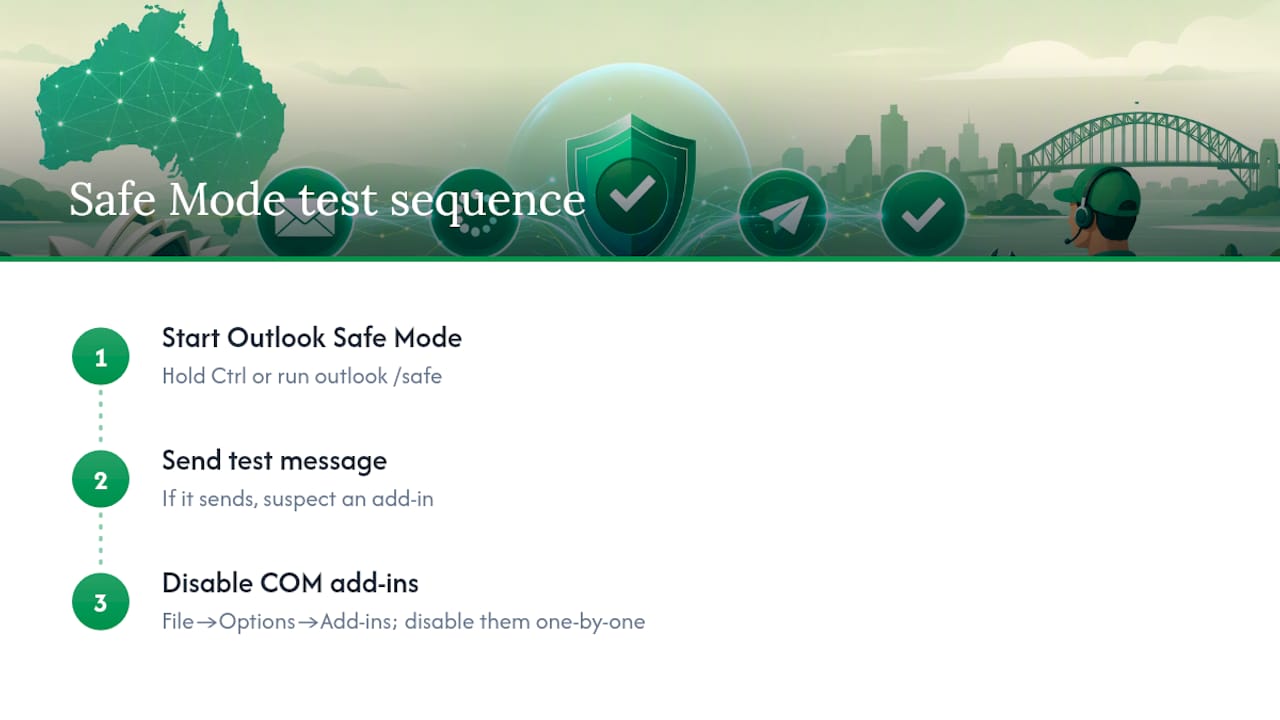
Add-ins are one of the sneakier causes of a jammed Outbox, especially anything related to encryption, signature management, or CRM plugins. Hold Ctrl while launching Outlook (or run outlook.exe /safe from the Run dialog) to start in Safe Mode, which disables all add-ins temporarily. If your message sends fine in Safe Mode, you’ve found your culprit. Go to File → Options → Add-ins, select COM Add-ins from the Manage dropdown, and disable them one at a time until you isolate the offender. Microsoft’s support documentation on send/receive failures walks through this same isolation process.
Force-close Outlook when it won’t quit
Sometimes Outlook gets so fixated on a failed send attempt that it refuses to close normally. When that happens:
Open Task Manager (Ctrl+Shift+Esc)
Find outlook.exe under Processes
Click End Task
Reopen Outlook and check whether the Outbox has cleared or reset
This is a supported troubleshooting step, not a last resort hack, but it should be followed by checking your data file integrity afterward.
Run the Inbox Repair Tool
If force-closing becomes a regular occurrence, or the Outbox behaves oddly even after every fix above, your PST or OST file may have low-level corruption. Windows ships with scanpst.exe, the Inbox Repair Tool, typically found in your Office installation folder. Close Outlook completely, run the tool against your data file, and let it scan and repair. This fixes a surprising number of “phantom” stuck-message problems that have nothing to do with your internet connection or your settings.
Check the Sync Issues folder for error codes
Open the Sync Issues folder in Outlook (it’s usually hidden under folder view settings) and look for specific error codes logged against failed sends. An error like 80040611 typically points to something more serious than a settings problem, often related to mailbox storage or namespace corruption on the server side. When you see recurring codes like this, Microsoft’s guidance on sync issues and undeliverable mail recommends escalating to a mailbox move or admin-level intervention rather than continuing to troubleshoot from the client side. That’s your signal this isn’t a five-minute fix anymore.
What About Gmail Stuck in Outbox or Outlook.com Problems?
Webmail and mobile apps behave differently from desktop Outlook, and that difference is actually useful for diagnosis. If a message won’t send from your phone or the desktop client but sends fine from a browser, you’ve just proven the problem lives in the app, not your account or the mail server.
Use webmail as your diagnostic baseline
Log into mail.google.com or outlook.com directly in a browser and try sending the exact same message. If it goes through, the server has accepted your account credentials and the message content, meaning the fault sits in whichever client app was stuck. If it fails on webmail too, the problem is server-side or account-side, and no amount of app restarting will fix it.
Attachment limits differ by provider
Gmail caps attachments around 25MB, and Outlook.com sits close to that same range. Once you approach those limits, especially with multiple smaller files bundled into one email, sends start failing silently or hang indefinitely. The fix that actually sticks long term: stop attaching large files altogether and share a Google Drive or OneDrive link instead. It sends instantly regardless of the underlying file size.
Fixing mobile apps that won’t sync
Phones and tablets have their own special failure mode. A message stuck in outbox on iPhone Mail or the Gmail Android app is frequently a sync “partnership” problem between the device and the mail server, not a genuine sending error. The most reliable fix:
Remove the email account entirely from the device’s mail settings
Restart the phone
Re-add the account from scratch, letting it rebuild the sync relationship
This resolves the issue often enough that Microsoft’s own community support threads point to it as the standard fix for persistent mobile sync failures. Beyond that, check whether background data or battery optimization settings on the device are restricting the mail app from syncing in the background, and confirm the app actually has permission to run.
Pro Tip: If webmail sends but your desktop or mobile app doesn’t, don’t waste time repairing the app immediately. Try removing and re-adding the account first. Rebuilding the sync connection fixes the problem more often than any in-app troubleshooting step.
Could an SMTP Error or Blocked Port Be the Real Cause?
Sometimes the problem has nothing to do with your client settings, your attachments, or your add-ins. It’s happening further upstream, on the account or the network itself.
Mailbox and cloud storage limits
If your mailbox or associated cloud storage is full, outgoing mail can stall or fail outright, and in some cases, incoming mail sent to you during that window becomes unrecoverable once space frees up. Check your storage usage under your account settings, and if you’re close to the ceiling, archive old mail or clear out the Deleted Items and Junk folders before troubleshooting anything else. Microsoft’s guidance on mailbox sync covers exactly how storage limits interfere with send and receive.
Authentication and account blocks
A changed password that hasn’t been updated in your mail client, a security flag on your account, or a temporary block after suspicious login activity can all quietly stop outgoing mail without any obvious error message. Try logging into your webmail account directly. If it prompts for reauthentication or flags a security issue there, that’s your answer, and you’ll need to update your saved credentials in every client and device using that account.
SMTP and firewall blocking
Corporate firewalls, some home routers, and a handful of ISPs block or throttle SMTP traffic on certain ports, especially port 25. Switching to a different network temporarily, mobile hotspot data is a quick test, tells you fast whether your home or office network is the actual blocker. If the message sends over mobile data but not on your regular Wi-Fi, the issue sits with your network configuration or ISP, not your email account.
Cause | How to test it | Typical fix |
Full mailbox storage | Check storage usage in account settings | Archive or delete old mail, clear Junk/Deleted |
Expired or blocked authentication | Try logging into webmail directly | Reset password, reauthenticate all devices |
SMTP port blocked by network | Switch to mobile hotspot and retry | Contact ISP, or ask IT to open/allow the port |
Group policy or Exchange mailbox limits | Message fails consistently at work but not at home | Contact IT admin or mailbox provider support |
When the cause traces back to organizational policy, an Exchange administrator or your mail provider is the only one who can lift the restriction. No amount of client-side troubleshooting will override a server-side or group policy block.
How Do You Stop Messages From Getting Stuck Again?
A few small habits cut down how often you’ll ever see the Outbox freeze up again.
Compress or link large files instead of attaching them. Anything over roughly 20MB is a gamble depending on which provider is on the receiving end.
Turn on “Send immediately when connected” in Outlook’s Advanced settings so messages don’t sit waiting for a manual sync you might forget to trigger.
Do regular mailbox housekeeping. Archive old threads, empty Junk and Deleted Items, and keep an eye on your storage percentage before it creeps toward the limit.
Test add-ins periodically in Safe Mode, especially after installing anything new, and keep your mail client and operating system updated.
Send yourself a small test message occasionally. If it goes through instantly, your setup is healthy; if it lingers, you’ve caught a problem early instead of during something urgent.
Habit | Why it matters |
Cloud links over attachments | Avoids provider size limits entirely |
Send immediately when connected enabled | Removes the manual sync dependency |
Monthly mailbox cleanup | Keeps storage well under the ceiling that blocks sending |
Periodic Safe Mode test | Catches add-in conflicts before they cause a jam |
When Should You Just Call a Technician?
Run the basics first: toggle Work Offline, check your connection, strip any oversized attachment, and try Safe Mode. Most stuck emails clear up with those four steps alone, and they take less time than reading this section.
Call for help when you see repeated Sync Issues error codes like 80040611, when scanpst.exe reports damage it can’t repair, or when you’re being told a mailbox move is required. Those situations sit above what a home user can safely fix without breaking something further, and Technical support services exist specifically for that gap: full diagnosis, PST repair or account rebuild, and a straightforward explanation of what went wrong, sometimes backed by a guarantee so you’re not paying for a guess.
A technician visit typically starts with the same diagnostic sequence covered here, isolating client versus server, checking storage, testing Safe Mode, before moving into anything deeper like a full profile rebuild or mailbox migration. If your own troubleshooting gets you nowhere after the checklist above, that’s the point where in-person help usually saves more time than another hour of forum searching.
What This Guide Gets Right (and Where Most Advice Falls Short)
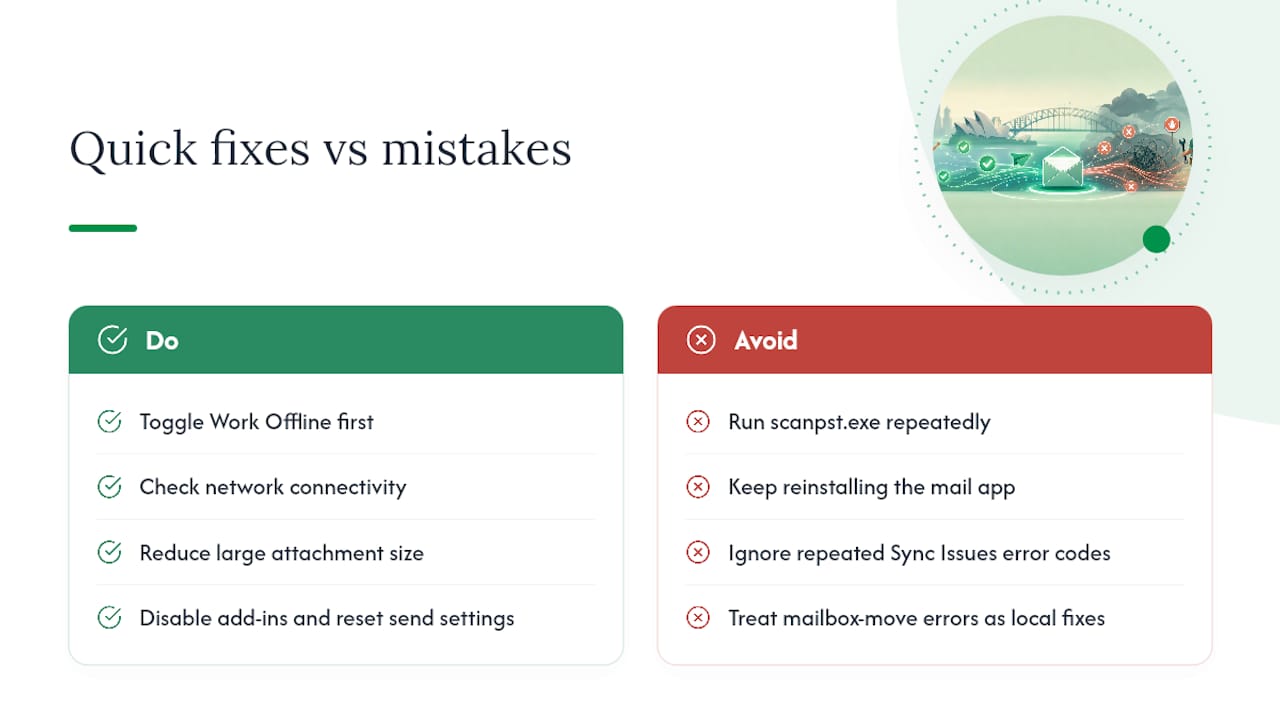
Most troubleshooting guides bury the actual fix under paragraphs of background explanation before telling you to toggle Work Offline, which is almost always step one. That ordering wastes the reader’s time. The evidence here is consistent: the overwhelming majority of stuck-outbox cases trace back to four causes, connectivity, attachment size, a stubborn add-in, or a stale send setting, and all four are fixable in minutes without opening a support ticket.
Where conventional advice tends to fail is knowing when to stop troubleshooting. People will run scanpst.exe five times or keep reinstalling their mail app when the actual error code in Sync Issues already points to a server-side mailbox problem no amount of local repair will touch. Learn to read that signal early. If you’re seeing repeated error codes or a mailbox move recommendation, that’s not a DIY afternoon anymore, and pretending otherwise just burns more of your evening. Prioritize the quick checklist first, always. But recognize the exit ramp when the evidence points to it.
— Matthew
Get Hands-On Help With Email Setup and Repair
Technical support services offer an alternative to spending your evening on hold with tech support or guessing your way through registry settings: a technician can come to you, diagnose the actual cause on the spot, and fix it the same visit, sometimes under a guarantee so you’re not paying for an unsolved problem.
A typical visit covers full email setup and repair across your devices, PST/OST diagnosis and rebuild when needed, mailbox and sync troubleshooting, and a clear, upfront price before any work begins, no surprise line items afterward. If you’ve worked through the checklist in this guide and your Outbox is still jammed, or you’d simply rather not deal with it yourself, Nextgenit’s email setup and troubleshooting service handles it on-site. Readers in Brisbane can check availability directly through the Brisbane service page and book a visit built around your schedule.
FAQ
How do I fix a stuck email in my Outbox?
Toggle off Work Offline, confirm your connection, then use Send/Receive → Send All. If that fails, drag the message to Drafts, remove any large attachment, and resend it.
Why is my email stuck in the Outbox and not being sent?
The most common causes are being disconnected or in Work Offline mode, an oversized attachment, a conflicting add-in, or the “Send immediately when connected” setting being turned off.
Will emails in the Outbox eventually send on their own?
Sometimes, if your connection restores and a scheduled Send/Receive triggers automatically, but many messages stay stuck indefinitely until you manually intervene, especially if a large attachment or add-in is blocking the send.
Why is my outgoing mail not sending at all?
Check whether your mailbox storage is full, your password or authentication has expired, or your network is blocking SMTP traffic. If webmail sends fine but your app doesn’t, the fault is in the client, not your account.
When should I stop troubleshooting and call a technician?
If you see repeated Sync Issues error codes, the Inbox Repair Tool can’t fix your PST file, or you’re told a mailbox move is needed, that’s beyond typical home troubleshooting, and a service like Nextgenit’s on-site email support can resolve it in one visit.
Recommended
Comments