
Stop Reinstalling Drivers, Diagnose Graphics Driver Crashes

Reset the graphics stack with Windows + Ctrl + Shift + B and reboot, then check whether the crashes started after a driver update. If the crashes carry on with a stock driver and no overlays running, do a clean driver reinstall or roll back to the last stable version before touching hardware. When that still doesn’t hold, the fault is probably physical, and it’s time for hardware checks or a technician.
TL;DR:
Crashes that started after a driver update may resolve by rolling back to the previous version before hardware checks begin.
Reproducing the crash in Safe Mode and analyzing Event Viewer logs help differentiate between software and hardware causes.
A clean driver reinstall using Display Driver Uninstaller in Safe Mode is often necessary if driver remnants cause instability.
Hardware issues like overheating or weak power supplies can mimic driver crashes and require thermal and power testing to diagnose.
Persistent crashes despite software fixes and hardware checks suggest consulting a technician for professional diagnosis and repair.
Table of Contents
Quick fixes for a graphics driver that keeps crashing
Before pulling apart anything, run through these low-risk checks. Most driver crashes trace back to something fixable in under half an hour, and none of the steps below can make things worse.
Reset the graphics driver. Press Windows + Ctrl + Shift + B. Windows will beep and the screen will flicker as it restarts the graphics driver without a full reboot. This is the single fastest test for whether the driver itself is hanging.
Recover from a black screen. If the desktop won’t load after signing in, press Ctrl + Alt + Del, open Task Manager, click File, then Run new task, and type explorer.exe. This rebuilds the desktop shell without reinstalling anything, and it’s the first move Microsoft recommends for a black screen after sign in.
Strip back your setup. Disconnect docks, extra monitors, and USB devices you don’t strictly need, then reboot and repeat whatever triggered the crash. A second monitor running a different refresh rate is a surprisingly common trigger.
Turn off overlays and recording software. Discord, GeForce Experience, Xbox Game Bar, and RGB lighting apps all inject code into the graphics pipeline. Disable them one at a time and retest.
Pause your antivirus temporarily. Some third-party security tools interfere with driver processes. Disable real-time protection for ten minutes while testing, then turn it back on.
Check the timing against updates. If the crashes started right after a Windows update or driver update, roll back to the previous driver version. If they’ve been happening for a while with no obvious trigger, download the latest stable driver straight from AMD, NVIDIA, or Intel rather than relying on Windows Update.
If none of this stops the crashing, you’re dealing with something more specific, and the next step is working out whether it’s software or hardware.
Is it a software problem or a hardware problem?
This is the fork in the road that saves hours of wasted effort. Fix the wrong category and you’ll be reinstalling drivers for a fault that’s actually a dying power supply, or replacing a graphics card that just needed a clean reinstall.
Start by reproducing the crash and writing down exactly what happens. Note the application running, how long it took to crash, whether the screen went black, froze, or showed artefacts, and the exact time. This record matters more than it sounds. It’s what turns guesswork into a diagnosis.
Boot into Safe Mode and try to reproduce the same crash. Safe Mode loads a minimal driver set, so if the system stays stable there, the cause is almost certainly a driver, overlay, or background app rather than the hardware itself.
Open Event Viewer (search for it in the Start menu) and check Windows Logs → System for entries around the crash timestamp. Look for a Display entry referencing TDR, or an event ID tied to nvlddmkm.sys (NVIDIA) or amdkmdap.sys (AMD).
Cross-reference the crash time against Application log entries. If Explorer or graphics DLLs show up repeatedly at the same timestamps, a Microsoft Q&A thread on post-login black screens recommends resetting the graphics driver first, then isolating startup apps with a clean boot before anything more invasive.
If Task Manager is still responsive during a crash, that’s a strong signal the fault sits with a specific app or the driver rather than the GPU locking up completely.
Where possible, capture a memory dump. Windows usually creates a minidump automatically after a driver crash, stored in C:\Windows\Minidump. These files are small and easy to attach to a support ticket or forum post.
Pro Tip: If Explorer crashes right after you sign in and an Event Viewer entry mentions a graphics DLL, try a clean boot first. Disabling all non-Microsoft startup items in Task Manager’s Startup tab often isolates the culprit in minutes, well before you need to touch drivers or hardware at all.
Safe Mode stability plus a driver-related Event Viewer entry points you firmly toward the driver reinstall covered next. Crashes that continue even in Safe Mode, or that show up with no software pattern at all, point toward the hardware section further down.
How do I fix a graphics driver problem with a clean reinstall?
A partial or corrupted driver install is one of the most common reasons a graphics driver keeps crashing, and the fix is a genuine clean reinstall, not just clicking “update” again. A clean reinstall using Display Driver Uninstaller in Safe Mode followed by the vendor’s own installer resolves crashes that stem from mixed driver remnants far more reliably than a standard reinstall over the top of the old one.
Before you reinstall anything, work out whether you actually need to roll back or move forward. If the crashes began within a day or two of a driver update, roll back. If they’ve been happening for weeks with no clear update tied to them, the current driver is likely just unstable for your hardware, and installing fresh (rather than rolling back further) is usually the better move.
Download Display Driver Uninstaller (DDU) from its official site, and download your vendor’s latest stable driver separately so it’s ready on your desktop.
Boot into Safe Mode. Go to Settings → System → Recovery → Advanced startup → Restart now, then choose Troubleshoot → Advanced options → Startup Settings → Safe Mode.
Run DDU and select your GPU brand. Use the “Clean and restart” option, which removes driver files, registry entries, and leftover services that a standard uninstall leaves behind.
Reboot normally and resist the urge to let Windows auto-install a driver. Go straight to installing the version you downloaded earlier.
Use the vendor installer’s factory reset or clean install option if it’s offered. NVIDIA’s installer and AMD’s Adrenalin software both have this as a checkbox during setup.
Test at stock settings first. No overclocks, no custom fan curves, no third-party overlays. If it’s stable, add extras back one at a time.
Write down the exact driver version that works. If you ever need to roll back again, you’ll know precisely which build was stable.
While you’re testing, go to Settings → Windows Update → Advanced options → Optional updates, and stop Windows from silently reinstalling a different driver version behind your back. This one step trips up a lot of people who think they’ve fixed the problem, only to have Windows Update quietly overwrite the clean install overnight.
Pro Tip: Don’t stop at the newest driver and one rollback. If both are unstable, try a version from two or three releases back. Vendors occasionally ship a genuinely broken build, and skipping past it to an older, more mature release is often more stable than either the newest driver or the one immediately before it.
If you’re on an AMD system and crashes started after a Windows update specifically, also clear the shader cache before reinstalling. Stale compiled shaders left over from a previous driver version are a known trigger for AMD driver timeouts after Windows 11 updates, and a factory-reset install clears them along with everything else.
What does a display driver stopped responding error actually mean?
That message, along with “display driver crashed and recovered,” is Windows telling you its Timeout Detection and Recovery system just stepped in. TDR is built into Windows specifically to catch a GPU driver that stops responding, reset it, and hand control back to the desktop without a full system crash. It’s a safety net, not a diagnosis of what’s actually wrong.
Here’s the practical part: TDR has a default timeout of two seconds. If your GPU doesn’t respond to a command within that window, Windows assumes it’s hung and forces a driver reset. You’ll often see this logged in Event Viewer as event ID 4101, or you might come across the code VIDEO_TDR_FAILURE (0x116) in a crash dump, which points to the same underlying timeout rather than a specific hardware fault.
A single TDR event now and then, especially during a demanding game, isn’t necessarily alarming.
Repeated TDR events during the same task, at the same point every time, indicate a driver, thermal, or power problem worth chasing properly.
Vulkan-based games can expose marginal GPU or driver issues that DirectX titles don’t surface at all. If a game supports both, switching the rendering API is a useful, free diagnostic step.
You can temporarily extend TdrDelay in the registry (HKEY_LOCAL_MACHINE\SYSTEM\CurrentControlSet\Control\GraphicsDrivers, add a DWORD value named TdrDelay set to 8 or higher) to see whether the GPU eventually responds under a longer leash. This is a diagnostic tool only. Increasing TdrDelay doesn’t fix anything; it just buys the struggling GPU more time to respond, which tells you whether the card is close to finishing the task or genuinely stuck. Revert the value once you’ve got your answer.
Statistic Callout: Windows sets the default TDR timeout to a short period before it force-resets an unresponsive graphics driver, according to 9to5Windows. This interval represents the window your GPU has to respond before the system assumes failure.
If you’re stuck at a black screen with a cursor after login and none of the shell tricks work, capture a dump with Microsoft’s ProcDump utility while the issue is happening, or right after. Hand that file, along with your Event Viewer entries, to whoever you ask for help. It turns “it just crashes sometimes” into something a technician or forum can actually diagnose. It’s also worth running sfc /scannow and DISM /Online /Cleanup-Image /RestoreHealth from an elevated command prompt. Microsoft’s System File Checker tool repairs corrupted system files that occasionally interact badly with the graphics stack, and it costs nothing to rule out.
Could overheating or a weak power supply be the real cause?
Yes, and this is where a lot of people waste weeks chasing driver settings when the graphics card was never really the problem. Overheating, unstable overclocks, and ageing power supplies are among the most common hardware causes of what looks like a driver crash.
Monitor temperatures under the exact workload that crashes, not an idle desktop. Use HWiNFO64 or MSI Afterburner to watch core, hotspot, and VRAM temperatures live. A hotspot temperature above 100°C on many modern cards, or VRAM running noticeably hotter than the core, points to a cooling problem rather than a driver bug.
Check PCIe power connector seating. A cable that’s almost fully clicked in can still deliver power under light load and drop out the instant the card draws more. Reseat every power cable and use the cable layout your PSU manufacturer actually recommends rather than daisy-chaining connectors.
Reset every tuning setting to stock. Undervolts, overclocks, and motherboard XMP or EXPO memory profiles can all destabilise a system in ways that look exactly like a driver fault. Set everything back to factory defaults and retest before assuming the driver is at fault.
Try reducing the GPU’s power limit by around 10% in software and retest under the same workload. If the crashing stops, that’s a strong sign your power supply’s transient response, rather than the card itself, is the weak link.
Test the card in a second system, or swap in a known-good power supply, if you have access to either. Isolating the card from its current environment is the most reliable way to separate a GPU fault from a PSU or motherboard fault.
It’s also worth checking your BIOS or UEFI settings for anything related to the PCIe slot. Some motherboards let you force the PCIe generation (running at Gen 3 instead of Gen 4, for instance) or adjust power delivery to expansion slots, and a card that’s marginal at higher PCIe speeds can sometimes stabilise once forced down a generation. Check that Above 4G Decoding and Resizable BAR settings match what your card and driver actually support, since a mismatch here occasionally produces symptoms identical to a driver crash.
Should you RMA the GPU or call a technician?
If you’ve done a clean driver reinstall, tested at stock settings, checked thermals, and swapped in known-good power, and the crashing still happens, the evidence points to hardware. Crashes that persist across a clean install and reproduce on a different system are a reliable sign the card itself, not the driver, is at fault.
Watch for these signs specifically:
Crashes that happen even in Safe Mode, where almost no third-party software is running.
Artefacts (coloured static, flickering textures, or garbled shapes) appearing on screen before the crash.
The same failure reproducing on a completely different PC with the same card installed.
Crashes that get worse as temperatures rise, even with cooling confirmed to be working properly.
Before contacting support or posting on a forum, gather your evidence: the minidump files from C:\Windows\Minidump, a written list of exactly what you’ve already tried, your driver version history, and basic hardware details (GPU model, PSU wattage, motherboard). This turns a vague “it keeps crashing” post into something a technician or forum moderator can actually work with.
If you’d rather skip the DIY diagnostic marathon, a technician visit covers the same ground in one sitting: safe hardware checks, stress testing under load, PSU testing, and a proper clean driver reinstall, all done in person. DIY troubleshooting is free but can eat an entire weekend when you’re chasing the wrong cause. A technician visit costs more upfront but usually resolves things in a single session, which matters if the machine is needed for work.
NextGen IT: a straightforward option when the crashing won’t quit
If you’ve worked through the checks above and your desktop still isn’t loading properly, or the graphics driver keeps crashing no matter what you try, A technician company provides on-site computer repair with a no-fix, no-fee guarantee, so you only pay when the problem is actually resolved.

A technician can run the hardware checks that are genuinely hard to do alone: proper PSU load testing, reseating cables and components, thermal diagnostics under real workloads, and a full clean driver reinstall done the right way the first time. Everything is explained in plain English, without technical jargon, so you understand exactly what was wrong and what was done about it.
Before your visit, jot down when the crashes happen, any error codes you’ve seen, and what you’ve already tried. That’s it. If you’re in one of the serviced areas and the driver crashes have gone on long enough that you’d rather have someone sort it properly, book a laptop and computer repair visit and get it looked at on-site.
Why the standard driver-crash advice misses the point
Most troubleshooting guides treat every graphics driver crash the same: update the driver, cross your fingers, move on. That advice is incomplete, and it wastes people’s time.
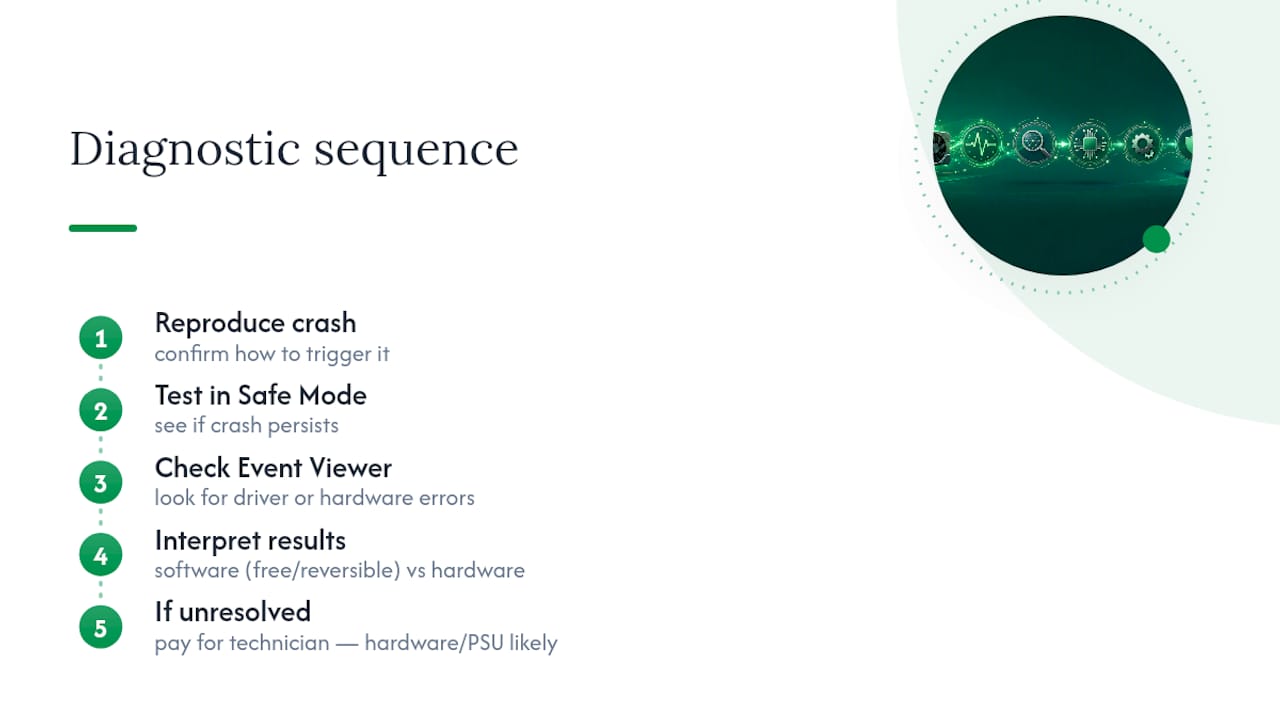
The order matters more than the individual fixes. Reproduce the crash, test in Safe Mode, and check Event Viewer before you touch a single driver file. That fifteen minutes of diagnosis tells you whether you’re chasing software or hardware, and it stops you from reinstalling drivers for the fifth time when the real problem is a power supply struggling under load.
TDR gets misunderstood too. People stretch TdrDelay and think they’ve fixed something, when all they’ve done is give a failing GPU more rope. If extending that delay makes the crash disappear, the hardware or driver is still failing. It’s just failing more slowly.
Read the diagnostic order in this guide as sequential, not optional. Software checks first, because they’re free and reversible. Hardware checks second, because they take longer and sometimes cost money. If you’ve genuinely worked through both and you’re still stuck, that’s the point where paying for a proper technician visit stops being an indulgence and starts being the sensible option.
— Matthew
Sources
FAQ
What are the signs of a failing GPU?
Persistent artefacts (flickering textures, coloured static, or garbled shapes) on screen, crashes that happen even in Safe Mode, and instability that gets worse as the card heats up are the clearest signs. If the same fault reproduces on a different PC with the same card installed, the hardware itself is the likely cause rather than software.
How do I fix a graphics driver problem?
Start by resetting the graphics stack with Windows + Ctrl + Shift + B, then check whether crashes started after a recent update. If problems continue, run a clean reinstall using Display Driver Uninstaller in Safe Mode, followed by the vendor’s recommended driver, and test at stock settings before adding overclocks or overlays back.
My Nvidia driver crashes in Windows 11. How can I fix this?
Check Event Viewer for TDR entries around the crash timestamp, then test in Safe Mode to see if the crashing stops. If Safe Mode is stable, do a clean DDU reinstall of the latest stable NVIDIA driver, and if crashes started right after an update, roll back to the previous version instead.
How do I know if a GPU driver is bad?
If the system stays stable in Safe Mode but crashes in normal use, the driver, an overlay, or a background app is the likely cause rather than the hardware. Rolling back to a previous driver version or doing a clean reinstall usually confirms it within a day or two of testing.
When should I call a technician instead of troubleshooting further?
Once you’ve reset the driver, tried a clean reinstall, tested at stock settings, and checked thermals and power without success, ongoing DIY effort has diminishing returns. NextGen IT offers on-site diagnostics with a No Fix, No Fee guarantee across Brisbane, Logan, Ipswich, and Redlands for exactly this situation.
Comments