
Printer Says It's Offline? 6 Step Checklist to Fix It Fast

A “printer offline” message almost always means your computer can’t talk to the printer, not that the printer is broken. A quick power cycle, confirming your printer and device share the same Wi-Fi network, and unchecking “Use Printer Offline” in the print queue solves the problem for most people within minutes. If those three moves don’t work, the cause usually sits in your network settings, drivers, or the Print Spooler service, and the steps below walk through each one.
TL;DR:
The most common cause for a printer going offline is a software or network issue, not hardware failure.
Ensuring the printer is on the same Wi-Fi network and restarting the Print Spooler service often resolves the problem.
USB testing can help identify whether the offline status relates to network or driver issues.
Fixing IP conflicts and reserving a fixed IP address through the router can prevent recurring offline errors caused by dynamic IP reassignment.
When persistent problems occur despite troubleshooting, a technician can diagnose and resolve network or hardware faults on-site under guaranteed service terms.
Table of Contents
Quick checklist: fast steps to try first
Work through these in order. Most printers come back online by step three.
Power-cycle everything. Turn off the printer, unplug it, and wait 30 seconds before plugging it back in. Restart your router, then switch the printer on once the router has fully rebooted. This clears temporary glitches in the connection between your PC and the printer.
Match the network. Check that your printer and your laptop or phone are on the exact same Wi-Fi name, not a guest network or a neighbouring 5GHz band with a different SSID.
Clear the offline flag. Go to Printers & Scanners, open the print queue, and untick “Use Printer Offline.” Cancel any stuck jobs sitting in the queue first.
Isolate the cause. Plug the printer into your PC with a USB cable temporarily. If it prints fine over USB, the fault is in your network, not the printer itself.
Restart the Print Spooler. This Windows service manages every print job and often needs a kick after a network drop.
Reinstall if needed. Remove the printer from your device and add it again, or install a fresh driver from the manufacturer’s site.
Pro Tip: If the printer prints a test page from its own control panel but not from your PC, the fault is almost certainly a software or network issue, not a hardware fault. Skip straight to the queue and Spooler checks.
Why does my printer keep going offline?
The recurring version of this problem is usually one of three things: a router that reassigns IP addresses too often, a driver that’s dropping the connection, or a power-saving setting putting the printer to sleep between jobs. Fixing it for good means going past the quick checklist and actually diagnosing which layer is failing.
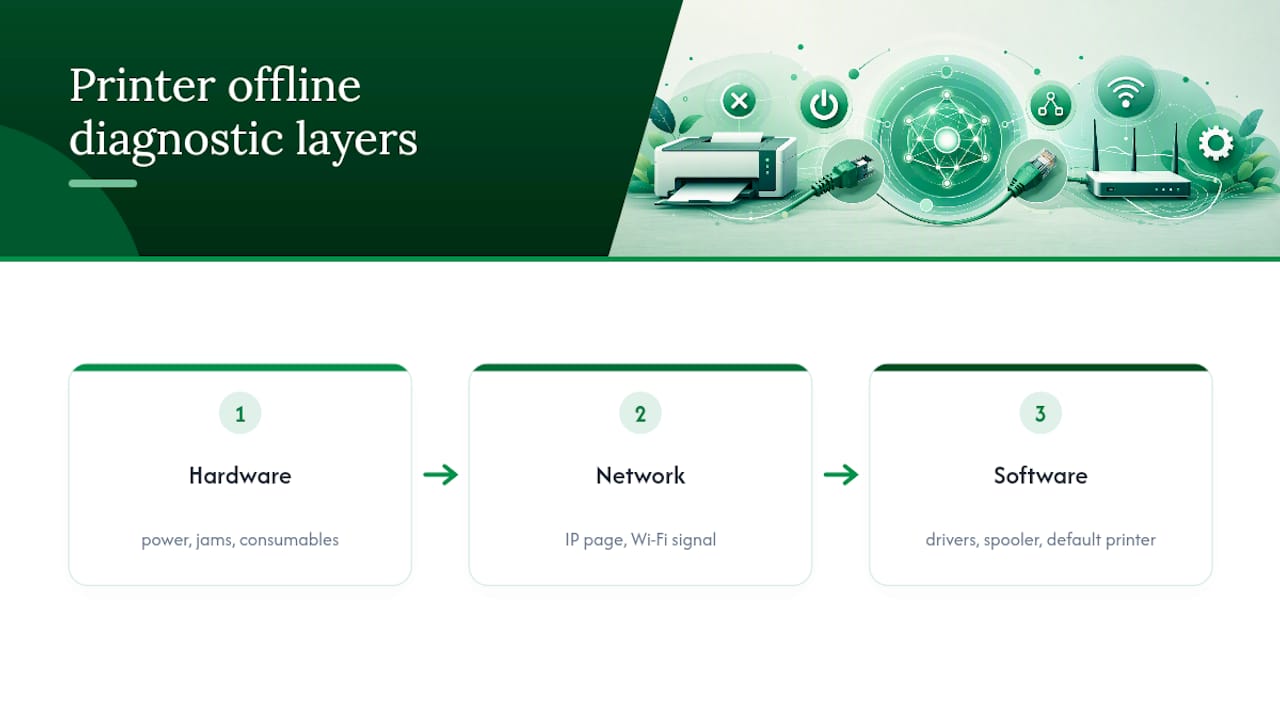
Hardware checks come first. Look at the power lead and confirm it’s firmly seated, check for blinking error lights (each brand uses a different pattern, so check the manual or manufacturer site), clear any paper jams, and confirm ink or toner isn’t empty. A printer that’s out of consumables sometimes reports itself as offline rather than showing a clear error.
Network checks come next. Most printers let you print a network configuration page directly from the control panel, usually through a settings or network menu. This page lists the printer’s current IP address, which you’ll need for later steps. Check the printer’s Wi-Fi icon for a solid connection light rather than a blinking one, and if signal looks weak, move the printer closer to the router. HP’s own guidance suggests keeping the printer within around eight metres of the router for a reliable signal, and trying a wired Ethernet connection if your printer supports it and Wi-Fi keeps dropping.
Windows software steps are where most persistent cases get resolved. Open Settings, then Bluetooth & Devices, then Printers & Scanners. Click your printer, set it as the default if it isn’t already, and open the queue. Clear any stuck jobs. If “Let Windows manage my default printer” is switching your default unexpectedly, turn that off so your chosen printer stays selected.
Restarting the Print Spooler fixes a surprising number of stubborn offline errors. Open the Run dialog, type services.msc, find Print Spooler in the list, right click, and select Restart. Attempt a test print straight after. If the Spooler service keeps crashing on its own, that’s often a sign of a corrupted driver file or a conflict from bundled printer software, and a clean driver removal followed by a fresh install is the more permanent fix.
Drivers and firmware matter more than most people expect. Download the current driver from the manufacturer’s own support page rather than relying on whatever Windows installed automatically, since manufacturer drivers usually include the correct firmware compatibility notes. If a driver update doesn’t fix it, removing the printer entirely and re-adding it forces Windows to rebuild the connection from scratch, which resolves conflicts a simple restart won’t touch.
On a Mac, resetting the printing system (found under Printers & Scanners, accessed by right-clicking the printer list) wipes every configured printer and lets you re-add them cleanly. On mobile, vendor apps like HP Smart or Canon PRINT are usually faster than fiddling with iOS or Android system settings, since they handle reconnection through a guided setup mode rather than manual network configuration.
Advanced network causes: IP conflicts, routers and VPNs
When the quick fixes and driver reinstalls don’t stick, the fault is usually something on the network layer that’s harder to spot.
Print the network configuration page from the printer’s control panel to find its current IP address and confirm the subnet mask matches your PC’s.
Log into your router’s admin page and check the DHCP client list for duplicate IP addresses. Two devices fighting over the same address will drop connections intermittently.
Guest networks and “AP isolation” settings on some routers deliberately block devices from talking to each other, even on the same Wi-Fi name. Test by connecting both the printer and your PC to the same non-guest network segment.
If you’re running a VPN, disconnect it and try printing again. A VPN or virtual adapter can route your PC’s traffic away from the local network entirely, which cuts it off from anything sitting on your home LAN, printer included.
Temporarily disable a personal firewall and attempt a test print. If that fixes it, the firewall’s rules are blocking printer traffic, and you’ll need to add an exception rather than leaving it switched off long term.
Pro Tip: If your printer’s IP address changes every few days, ask your router to reserve a fixed IP for it under DHCP reservations. It stops the churn that causes “offline” errors to reappear out of nowhere.
When to call a technician
Some symptoms are a sign to stop troubleshooting and book a visit: a Print Spooler that crashes repeatedly no matter how many times you restart it, a printer that drops offline intermittently even after a full reset, or persistent offline status after a complete driver reinstall.
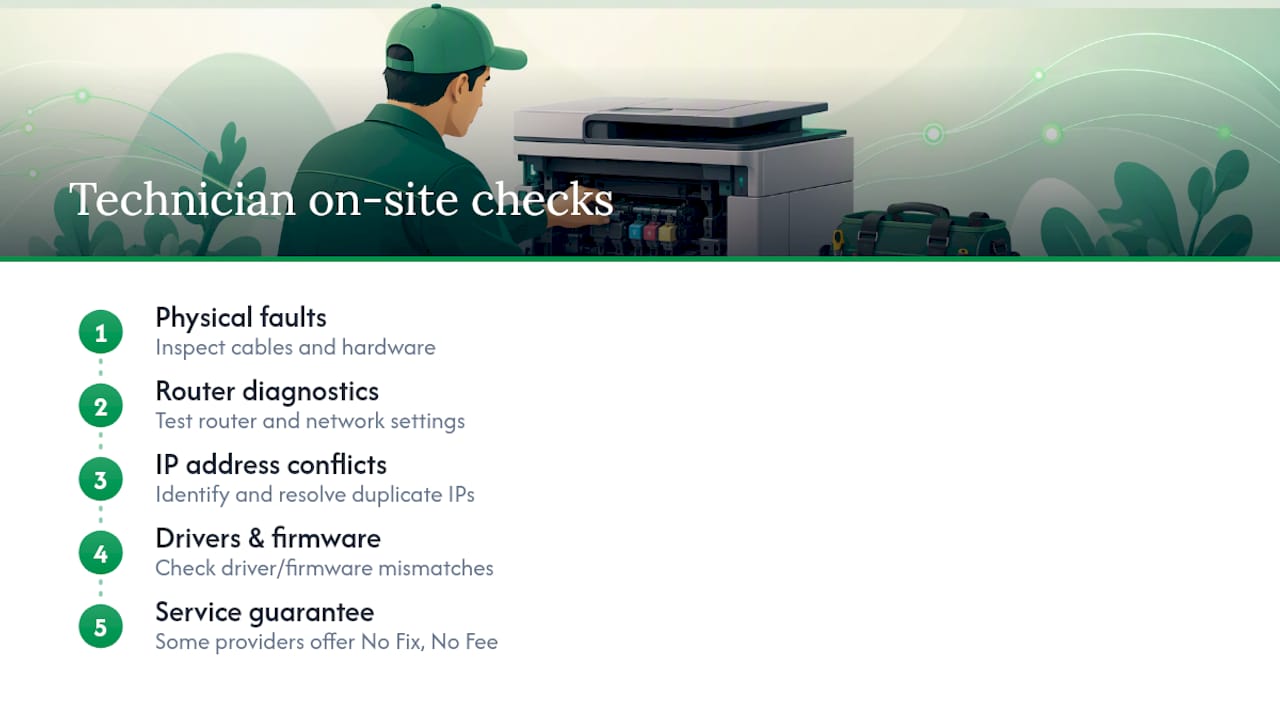
A technician arriving on site typically checks for physical faults first, then works through router diagnostics, IP address conflicts, and driver or firmware mismatches that are hard to spot without direct access to your network settings. Some service providers offer a No Fix, No Fee guarantee, meaning you only pay once the printer is actually working again.
Get your printer fixed at home, no jargon required
If you’ve worked through the checklist and your printer is still stuck offline, it’s worth having someone look at the actual network setup rather than guessing at another restart. Technicians can be sent to your home to sort out router conflicts, driver issues, and stubborn Wi-Fi problems on the spot, with transparent pricing agreed before any work starts.

Nextgenit’s printer and scanner support covers wireless setup, driver installation, and network troubleshooting for households where the DIY steps haven’t worked or aren’t worth the time. If a router setting or a firewall rule is quietly blocking your printer, that’s the sort of thing a technician spots in minutes on site rather than after another hour of forum searching. The No Fix, No Fee guarantee means you’re not paying for a visit that doesn’t solve the problem. Book a home printer setup visit in Brisbane and get it sorted without the technical back and forth.
Sources
FAQ
How do I get my printer back online?
Power-cycle the printer, PC, and router, confirm they’re on the same Wi-Fi network, then open the print queue and untick “Use Printer Offline.” This resolves most cases within a few minutes without touching drivers or network settings.
Why is my printer saying it’s offline when it isn’t?
The offline flag is a software status, not a physical check, so it can stay stuck even after your printer reconnects to the network. Clearing the print queue and restarting the Print Spooler service usually clears the false reading.
How do I switch my HP printer from offline to online?
Open Printers & Scanners in Windows, select your HP printer, open its queue, and uncheck “Use Printer Offline.” If that doesn’t work, HP’s support guidance recommends checking the wireless icon on the printer’s display and reconnecting through the HP Smart app.
How do I fix a printer that keeps going offline repeatedly?
Recurring offline errors usually point to an IP address conflict or a router reassigning addresses too often. Reserve a fixed IP for the printer through your router’s DHCP settings, and if the problem persists, Nextgenit can diagnose the network on site under its No Fix, No Fee guarantee.
Is a printer offline error a hardware or software problem?
It’s almost always a software or network communication issue rather than a hardware fault, since the printer typically still works when tested with a direct USB connection. Hardware faults tend to show as error lights or blank test pages instead.
Recommended
Comments