
Fix "Connected, No Internet" Wi‑Fi in Australia: Test One Device First

Your device says it’s connected to Wi-Fi but nothing loads. That gap means your device has reached the router but the signal is dying somewhere between there and the internet. Test a second device first; if it fails too, power-cycle the modem, then the router, and check whether your provider has an outage before you touch any settings.
TL;DR:
Most Wi-Fi-related issues are resolved by power-cycling the modem and router, especially when multiple devices are affected and the ISP reports no outage.
Checking a second device on the same network quickly isolates whether the problem is with your device or the entire home network.
If all devices cannot access the internet despite being connected, the fault likely lies with your modem, router, or upstream service, not local settings.
For single-device problems, simple fixes like renewing IP addresses, resetting network settings, or disabling VPN software often restore connectivity without touching the router.
Persistent or complex issues may require professional onsite diagnostics, particularly when multiple troubleshooting steps have failed or hardware faults are suspected.
Table of Contents
Why does Wi-Fi say connected but no internet access?
Being “connected to Wi-Fi” and having internet access are two separate things, and mixing them up wastes a lot of troubleshooting time. Your device is connected the moment it links to your router’s local network, but that only proves your router and device can talk to each other. Whether that local network can reach the wider internet depends on your modem, your ISP’s line, and everything in between.
Microsoft’s support documentation puts it plainly: a device can join the router fine while the actual break sits between the router, the modem, or the ISP itself. That’s why the fastest diagnostic step is not restarting anything. It’s figuring out whether the fault lives on your device, your home network, or further upstream.
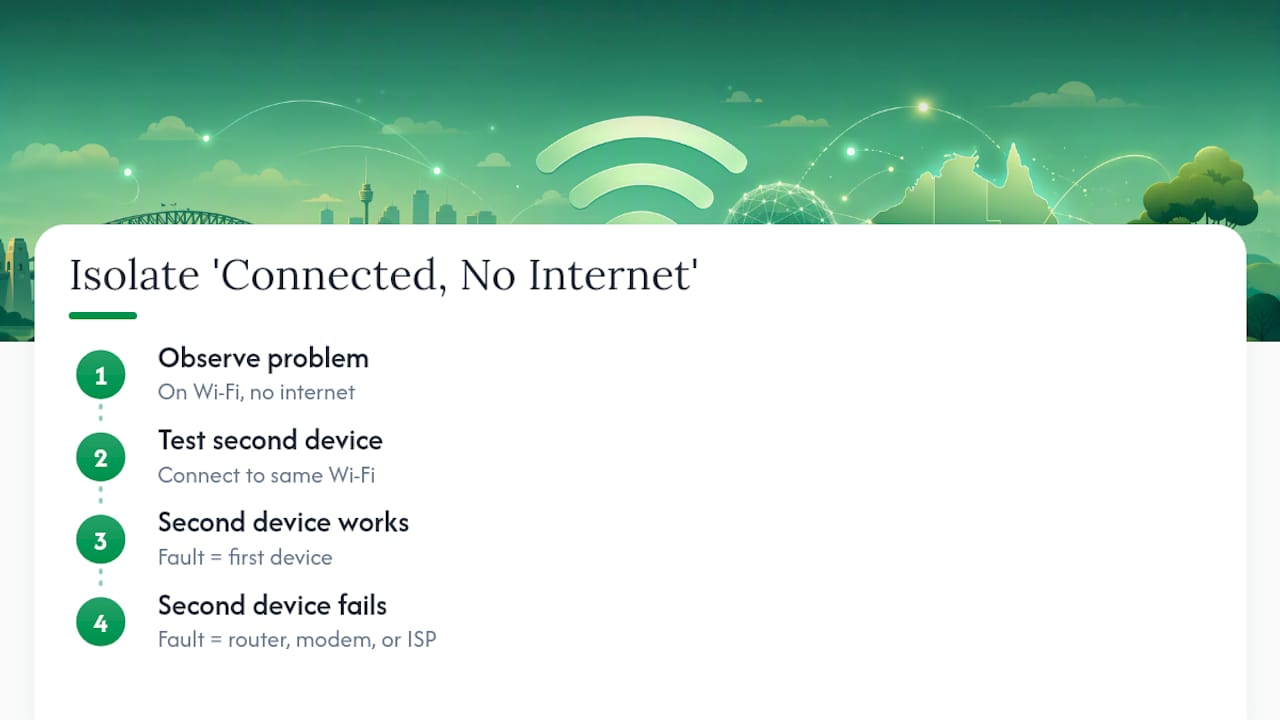
Try this: switch a second device onto the same Wi-Fi network. If it also shows “connected, no internet,” the problem isn’t your laptop or phone. It’s the router, the modem, or the service coming into your house. If the second device works fine, you’ve isolated the fault to the first device, which means a much simpler fix.
Quick checks to run right now
Work through these in order. Most Wi-Fi-but-no-internet problems get solved in the first three steps.
Test scope first. Connect a second device to the same network, and check your mobile data to see if your phone’s internet works independently. This tells you in under a minute whether the issue is one device or the whole network.
Power-cycle the modem, then the router. Unplug the modem, wait 30 to 60 seconds, plug it back in and let it fully reconnect, then do the same with the router. TP-Link’s troubleshooting guide lists this as the single most common fix for exactly this symptom.
Look at the lights. Check the modem and router’s WAN and internet indicator lights, and make sure every cable is pushed in properly at both ends.
Restart the affected device. Toggle Wi-Fi off and on, or flick Airplane Mode on then off, which forces the device to renegotiate its connection from scratch.
Know when to stop and call your ISP. If the modem’s WAN light is off, blinking abnormally, or your provider confirms an outage, no amount of restarting your laptop will fix it.
Pro Tip: Always unplug the modem before the router, not the other way around. The router needs a fresh signal from the modem to reconnect properly, and restarting it first just means it grabs the same broken connection again.
Fixing single-device Wi-Fi problems on Windows, macOS, Android and iPhone
When only one device shows Wi-Fi connected but no internet access, and everything else in the house works fine, the fault is almost always a local configuration issue on that device. These fixes don’t touch your router or modem settings, so they’re safe to try without any risk to the rest of your home network.
Windows fixes
Windows machines are prone to a specific and very fixable issue: a bad or missing IP address. Here’s the sequence that resolves most cases.
Forget the Wi-Fi network in settings, then rejoin it and re-enter the password. This clears a stale network profile that can quietly break things.
Open Command Prompt and run ipconfig /release followed by ipconfig /renew to force Windows to request a fresh IP address from the router.
Flush the DNS cache with ipconfig /flushdns, which clears out corrupted website lookup records.
Check your IP address with ipconfig. If it starts with 169.254, your device has failed to get an address from the router at all. Microsoft’s own guidance confirms this specific range means a failed DHCP handshake, not a DNS or website problem.
Update your network adapter driver through Device Manager if the problem persists after the above.
If the IP address looks normal but websites still won’t load, that’s usually DNS rather than connectivity. Microsoft’s advice here is worth following closely: temporarily disable any VPN, proxy, or third-party security software, then try again before changing DNS servers manually.
macOS fixes
Apple’s approach leans on built-in diagnostic tools rather than command-line fixes, and they’re genuinely useful.
Hold the Option key and click the Wi-Fi icon in the menu bar to see Wi-Fi Recommendations, which flags common configuration issues automatically.
Run Wireless Diagnostics (hold Option and click the Wi-Fi icon, or search for it in Spotlight) to generate a diagnostic file. Apple’s support page explains how this tool analyses your connection and can create a report worth sharing with a technician if the issue continues.
Renew your DHCP lease under System Settings > Network > Wi-Fi > Details > TCP/IP > Renew DHCP Lease.
Check that your Mac’s date and time are set correctly. This sounds unrelated, but an incorrect clock can break secure website connections outright.
If you’ve installed any VPN or proxy software, disable it fully and test again. Leftover network extensions from uninstalled VPN apps are a surprisingly common cause of “connected but nothing loads” on Macs.
Android fixes
Android phones usually respond to a simpler set of steps.
Restart the phone. This clears more temporary network glitches than people expect.
Toggle Wi-Fi off and back on, then try Airplane Mode on and off as a second pass.
Forget the network in Wi-Fi settings and rejoin it with the password.
Test the phone on a completely different Wi-Fi network, such as a neighbour’s or a café’s, to confirm whether the fault is the phone or your home network.
Check for a VPN app or security app running in the background. Google’s Android support guidance recommends this exact restart-toggle-rejoin sequence before assuming a hardware fault.
iPhone and iPad fixes
iOS devices follow a near-identical path to Android.
Restart the device fully, not just the Wi-Fi toggle.
Forget the network under Settings > Wi-Fi, then rejoin and re-enter the password.
If the problem persists, reset network settings entirely (Settings > General > Transfer or Reset iPhone > Reset > Reset Network Settings). This wipes saved Wi-Fi passwords, so be ready to re-enter them.
Check for an active VPN profile or proxy configuration under Settings > VPN, and disable it temporarily to test.
Confirm iOS is up to date, since Apple occasionally ships connectivity fixes in point releases.
When every device loses internet, look at the router and modem
If every device in the house shows the same “connected, no internet” symptom, the fault sits with your router, modem, or the connection coming from your provider. Chasing device settings at this point wastes time.
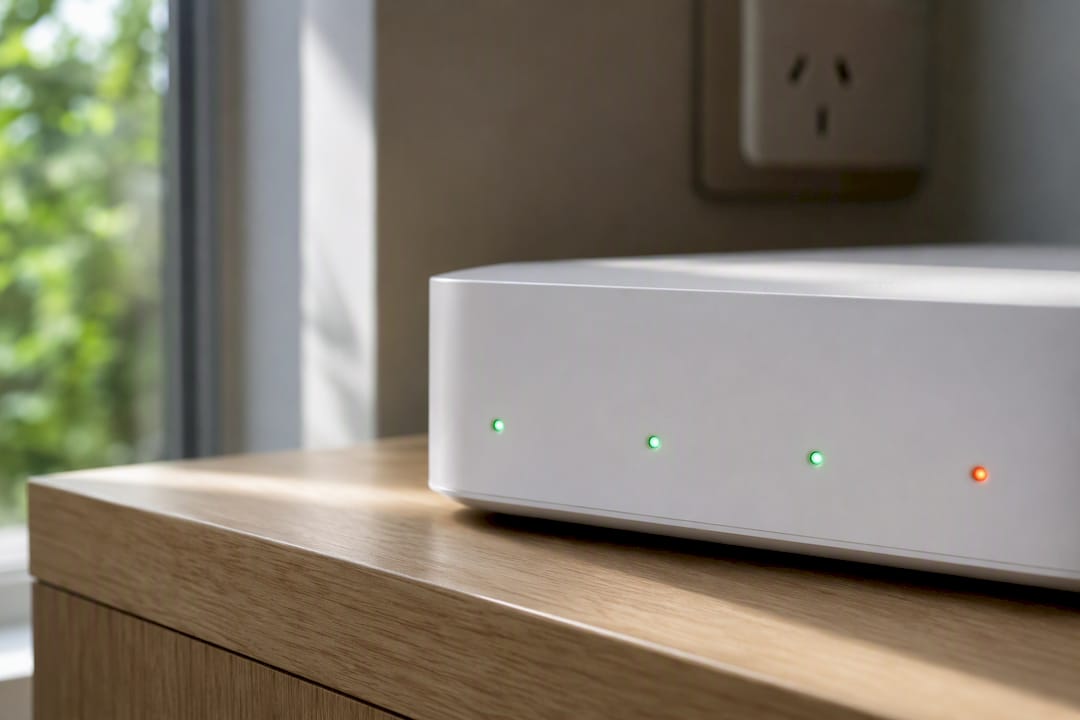
Start by reading the status lights. A solid green internet or WAN light usually means the modem has a working connection. A blinking amber or red light, or no light at all, typically means the modem itself has lost its signal from the provider. Patterns vary between manufacturers, so check the light legend printed on the unit or in the box.
The most useful single diagnostic test is bypassing the router entirely. Connect a laptop directly to the modem with an Ethernet cable. If that laptop gets online, the modem and the ISP connection are fine, and the fault is your router. If the laptop still can’t get online plugged straight into the modem, the fault is upstream of your home entirely, whether that’s the modem, the wiring, or the provider’s network.
A few other things worth checking before you call anyone:
Confirm the router isn’t accidentally set to bridge mode when it should be routing, or vice versa. This setting gets changed accidentally more often than you’d think, especially after a firmware update.
Check whether your connection type is DHCP, PPPoE, or static IP, and confirm those settings weren’t reset. This detail matters most for fibre and some cable connections where the ISP assigns a specific login method.
Resist the urge to factory reset the router immediately. A reset wipes your Wi-Fi name, password, and any custom settings, and it rarely fixes an upstream ISP fault anyway.
Around 30 to 40% of home internet complaints reported to Australian carriers relate to line or NBN network faults rather than customer equipment, according to the Australian Communications and Media Authority. Before you call, write down what you tried, what time the outage started, and exactly what the modem’s lights were doing.
If your provider can’t resolve it and you’ve given them a fair chance, the ACMA’s guidance is to escalate to the Telecommunications Industry Ombudsman once you’ve exhausted the telco’s own process. Keep timestamps and light patterns handy. Technicians can often cross-reference those against carrier-side logs to pinpoint the fault faster.
Could your Wi-Fi network be compromised?
Sometimes “connected but no internet” isn’t a fault at all. It’s a symptom of someone else on your network eating your bandwidth or redirecting your traffic. According to Forbes, the tell-tale signs of a hacked Wi-Fi network include devices you don’t recognise in your router’s connected-device list, a router admin password that no longer works, DNS or proxy settings that changed without your input, and browsers repeatedly redirecting to strange pages.
If any of that sounds familiar, act on it straight away:
Change your router’s admin password and your Wi-Fi password, and don’t reuse either anywhere else.
Check for a firmware update on your router and install it, since outdated firmware is a common entry point for attacks.
Remove any device from the connected-devices list that you don’t recognise.
Reset your DNS settings to a trusted provider such as Google DNS or Cloudflare, then reboot the router.
Pro Tip: If you’re seeing persistent redirects even after changing passwords, don’t keep experimenting. Preserve what you can, screenshot the device list and any strange settings, and get a technician to look at it before you do anything else that might overwrite evidence of what happened.
When to book an on-site technician instead of troubleshooting further
Some faults are worth paying someone to fix rather than burning an evening on. Book an on-site visit if the outage persists after a full power cycle and a confirmed clean bill of health from your ISP, if your connection drops intermittently in a pattern you can’t explain, if a hardwired Ethernet drop has stopped working, or if you suspect a hardware fault in the modem or router itself.
A technician arriving to a well-documented problem works faster and usually cheaper, because there’s less guesswork involved. They’ll typically test the WAN connection at the modem, check the router’s overall health, test cable continuity on any hardwired runs, look for interference sources nearby, and check the network stack on your specific devices.
Before they arrive, jot down:
Which devices are affected, and which (if any) still work fine.
What time the problem started and whether it’s constant or intermittent.
What the modem and router lights were doing when it happened.
Any error messages you saw on screen.
What you already tried, including the power cycle and any device-level fixes.
What actually saves you time and money here
The single biggest time-saver in this whole process is the one-device-versus-all-devices test, and most people skip straight past it. They restart the router three times before checking whether their partner’s laptop across the room has the same problem. That thirty-second check tells you immediately whether you’re dealing with a five-minute fix or a call to your provider.
Screenshot this order and keep it: test another device, check mobile data for an ISP outage, power-cycle modem then router, restart the specific device, check for a 169.254 address or DNS issue, then escalate. Work through it in that order and you’ll solve most cases before you’ve even finished your coffee.
— Matthew
Get an on-site Wi-Fi fix without the guesswork
If you’ve worked through the checks above and you’re still stuck, or you’d simply rather have someone else sort it, A technician can come to your door instead of you being left on hold with a call center reading from a script. A Wi-Fi and internet visit covers full diagnostics, checking your cabling, reconfiguring the router where needed, applying firmware updates, testing your other devices, and basic security hardening so the same issue, or a hacked-network scenario, doesn’t come back.

Every visit runs on a No Fix, No Fee basis, so you’re not paying for a technician to turn up and shrug. Technicians cover homes and small businesses in multiple areas, explaining what went wrong in plain English rather than jargon. If your Wi-Fi keeps dropping out or you’re tired of troubleshooting alone, book a Wi-Fi and internet visit and get it sorted properly the first time.
Where to go for official troubleshooting guidance
For exact commands and step-by-step tools, the vendor support pages are worth bookmarking. Microsoft Support covers Windows-specific fixes including IP renewal and DNS flushing, while Apple Support walks through Wireless Diagnostics for Mac. Google’s Android Help covers the restart-and-toggle flow for phones, and your router manufacturer’s site, such as TP-Link’s guides, has device-specific firmware and reset instructions. For Australian NBN issues specifically, the ACMA’s problems-with-the-NBN page explains how to record evidence and escalate through the proper channel.
Sources
FAQ
Why is Wi-Fi connected but no internet is loading?
Your device has successfully joined the local router network, but the connection between the router, modem, and your ISP has broken somewhere. Test a second device on the same network; if it also fails, power-cycle the modem then the router before checking anything else.
Why is my internet connected but I don’t have any signal?
This usually means the local Wi-Fi signal itself is weak or blocked by interference, rather than an internet outage. Move closer to the router, check for physical obstructions or nearby electronics, and confirm other devices on the same network aren’t affected before assuming it’s your ISP.
What are signs of a hacked Wi-Fi network?
Unfamiliar devices appearing in your router’s connected-devices list, an admin password that no longer works, changed DNS or proxy settings, and repeated browser redirects are all signs your network may have been compromised, according to Forbes. Change your router and Wi-Fi passwords immediately and update the firmware if you notice any of these.
How do I know if the problem is my device or my whole network?
Connect a second device to the same Wi-Fi network. If it also shows connected with no internet, the fault is with your router, modem, or ISP rather than the first device.
Should I call an on-site technician or my ISP first?
Call your ISP first if every device in your home is affected and the modem’s lights suggest a signal issue. Book an on-site visit, such as one from Nextgenit, if your ISP confirms there’s no outage but the problem persists, or if you’d rather have someone diagnose and fix it in person.
Recommended
Comments