
Stop Home Wi‑Fi Dropouts With Pattern Triage and No Fix, No Fee Visits

Updated: Oct 19
The fastest way to stop most dropouts is a router and modem power cycle paired with a wired Ethernet test to help find whether the fault is in your Wi-Fi or your internet line. If only one device disconnects, the fix is almost always on that device. If everything drops at once, the router, interference, or your ISP is the real problem.
TL;DR:
A wired Ethernet test can identify whether Wi-Fi dropouts stem from interference or the internet line, especially if all devices experience simultaneous disconnects.
Checking device-specific issues involves rejoining networks, updating drivers, and switching between 2.4 and 5 GHz bands, particularly for older or IoT devices.
A firmware update, proper router placement, and separating Wi-Fi bands are crucial steps to prevent widespread network drops.
Excessive interference from household objects like microwaves or thick walls often causes weak signals, making placement and channel selection vital.
For persistent and unpredictable issues, advanced diagnostics such as long-term ping logging or replacing Ethernet cables help pinpoint hardware or ISP-related problems.
Table of Contents
Why Is My Wi-Fi Unstable? Quick Fixes to Try Now
Most dropouts trace back to a handful of causes: a stale router lease, a stubborn device driver, or a neighbor’s router fighting yours for the same channel. Before you touch a single setting, work through these steps in order.
Power-cycle the modem first. Unplug it, wait 30 to 60 seconds, then plug it back in and let it fully reconnect before touching the router.
Power-cycle the router next. Once the modem’s internet light is solid, restart the router and wait for all its status lights to settle.
Test after each step. Load a webpage or run a speed test before moving to the next step so you know exactly which restart solved anything.
Restart the affected device and rejoin the network. Forget the Wi-Fi network on that device, then reconnect and enter the password fresh. This clears out a corrupted network profile that’s more common than people assume.
Check the physical basics. Look at router lights, make sure cables are seated properly, and check your ISP’s outage page or app before assuming it’s a settings problem.
Try a temporary band switch. Move the struggling device to 5 GHz if it’s currently on 2.4 GHz, or vice versa if 5 GHz range seems to be the culprit.
If a device is behaving oddly on a dual-band router, temporarily disabling MU-MIMO or band steering can help you see whether those features are causing regressions with certain devices. That’s a diagnostic step, not a permanent setting change.
Pro Tip: Keep a note on your phone with the time of every dropout and which device it happened on. That five-second habit turns a vague “wifi keeps disconnecting” complaint into a pattern you (or a technician) can actually solve.
Is It Your Device, Your Wi-Fi, or Your ISP?
Wi-Fi problems fall into three buckets: the device, the local wireless network, or the internet connection coming into the house. Sorting out which bucket you’re in saves hours of pointless setting changes.
Start with a wired test. Plug a laptop directly into the router or modem with an Ethernet cable and run a sustained download along with a browsing session. A stable wired connection while Wi-Fi drops points squarely at your wireless setup, not your ISP. If the wired connection also stutters, the problem is upstream of the router.
Run the wired test described above and note whether it stays stable for at least 15 minutes.
Open a command prompt or terminal and run a continuous ping to a stable address like 8.8.8.8, then leave it running while you go about your day.
Note the exact time of any dropped pings and compare it against what was happening in the house (someone microwaving lunch, a smart TV starting a 4K stream, kids coming home from school).
Match the pattern against the checklist below.
Pattern observed | Likely cause | Where to look next |
Only one device disconnects | Device driver, power settings, or a corrupted network profile | Device-level fixes |
Only one room loses signal | Distance, walls, or physical obstruction | Router placement or added access point |
All devices drop, same time daily | Channel congestion or ISP peak load | Channel settings or ISP contact |
All devices drop at random times | Router hardware, firmware, or interference | Router fixes and advanced diagnostics |
Writing down exact times and affected devices does more than help you. It’s the single fastest way to get a technician to the actual root cause instead of restarting everything from scratch on arrival.
Fixing a Single Device That Keeps Disconnecting
When it’s one laptop, one phone, or one smart TV losing the connection while everything else is fine, the fix is almost always local to that device.
On Windows machines, the most common culprit is power management quietly switching off the wireless adapter to save battery. Head into your adapter’s advanced settings and set Wireless Adapter Settings to Maximum Performance, then check for an updated network driver. Microsoft’s own guidance confirms that outdated drivers and aggressive power saving are frequent causes of drops that look random but aren’t. If a driver update doesn’t help, rolling back to a previous driver version sometimes fixes issues a bad update introduced.
For phones and tablets, work through these in order:
Forget the network entirely and rejoin it with the password re-entered.
Reset network settings if forgetting and rejoining doesn’t help. This clears saved Wi-Fi profiles, Bluetooth pairings, and VPN configs.
Boot into safe mode briefly to see if a rogue app is interfering with the radio. If the drops stop, an app is the culprit.
Smart TVs, game consoles, and other IoT devices often struggle for a different reason: they’re stuck on an older 2.4 GHz-only radio in a house crowded with neighboring networks. Check whether the device supports 5 GHz and switch it over if it does, and look for a power-saving Wi-Fi mode that’s putting the radio to sleep between packets.
Pro Tip: Before you factory-reset any device’s network settings, write down your Wi-Fi password and any VPN or static IP details. A factory reset clears everything, and re-entering those settings blind after the fact is its own headache.
Router Settings That Stop Dropouts Across the Whole House
When every device on the network drops, sometimes together and sometimes on a rotation, the router itself is usually where to look.
Keep the router’s firmware current. Manufacturers push updates specifically to patch bugs that cause exactly this kind of intermittent flakiness.
Give the router breathing room. A router stuffed in a cabinet or stacked under other equipment overheats, and overheating causes exactly the kind of random reboots and drops that look mysterious until you touch the case and it’s hot.
Split your 2.4 GHz and 5 GHz bands into separate network names while testing. Combined “smart” bands are convenient, but splitting them temporarily makes it obvious which band is actually causing the trouble.
Turn off MU-MIMO and band steering for a day if drops persist. These features improve performance in theory, but certain device and firmware combinations don’t handle them well, and disabling them is a low-risk way to test that theory.
On 2.4 GHz, stick to channels 1, 6, or 11. These are the only three that don’t overlap with each other, and picking anything in between guarantees interference with neighboring networks.
On 5 GHz, try a non-DFS channel if you notice drops that seem to happen at odd, unpredictable moments. DFS channels can force your router to abandon the channel and briefly disconnect clients if it detects radar-like signals nearby.
If you’re running a mesh system, unplug the secondary nodes and test the main router alone for a day. If dropouts stop, the backhaul link between nodes is the weak point, and a wired backhaul connection between nodes fixes this far more reliably than adding another wireless hop.
Re-enable any feature you disabled once you’ve confirmed it wasn’t the cause. These settings exist for good reasons on stable networks.
Could Interference or Placement Be Causing the Drops?
Full signal bars on your phone don’t guarantee a stable connection. They only confirm your device can hear the router, not that the router can hear your device clearly back, and that asymmetry explains a lot of “strong signal, still drops” complaints.
Ordinary household objects cause more Wi-Fi trouble than most people realize:
Microwaves running on the same 2.4 GHz frequency band as your router.
Cordless phones and baby monitors, especially older models.
Certain Bluetooth devices when they’re actively streaming or transferring.
Thick walls, mirrors, and metal-backed insulation, which reflect and absorb wireless signals more than drywall alone.
Test this cheaply: run a continuous ping while someone runs the microwave, then compare the log against a quiet period. A clear spike in dropped packets during the microwave run confirms the culprit without buying a single piece of equipment.
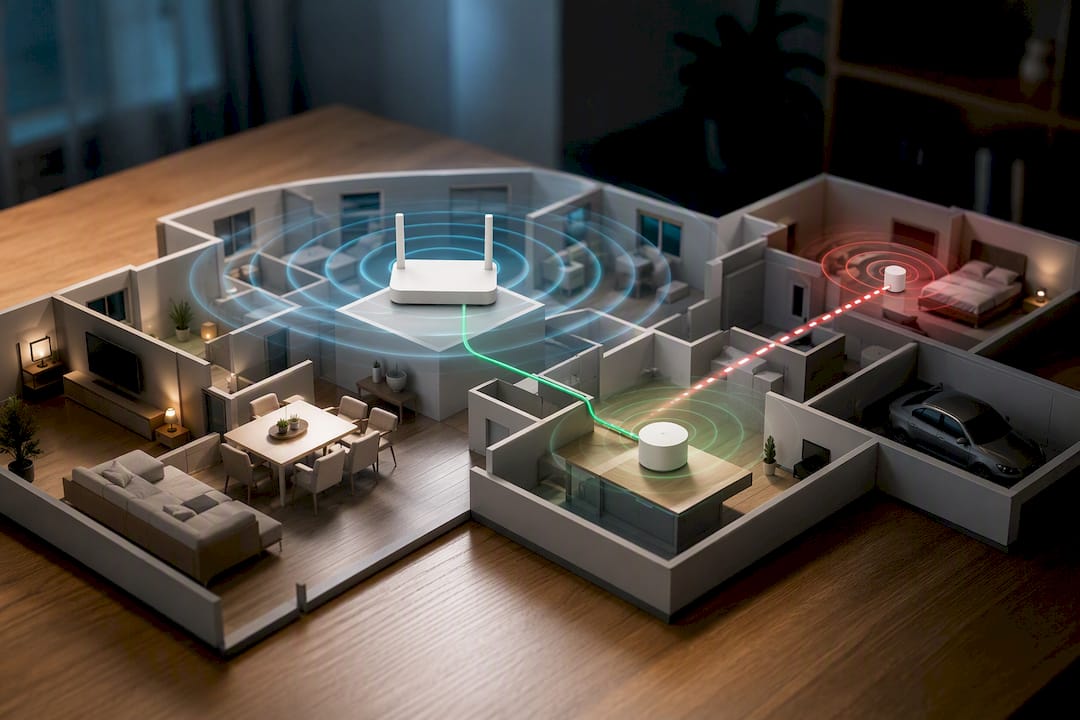
Router placement matters more than most people budget for. Put it in a central, elevated, open spot, not tucked behind a TV cabinet or inside a closet. If a back bedroom or garage stays a dead zone no matter what you do, adding a properly placed access point with a wired connection back to the router solves it more reliably than a plug-in repeater, which tends to halve your bandwidth on that segment.
Advanced Diagnostics for Stubborn, Unpredictable Drops
If you’ve worked through placement, channels, and device fixes and the dropouts still show up randomly, it’s time to gather evidence rather than guess further.
Run a continuous ping to a fixed address like 8.8.8.8 and let it log for several hours, ideally overnight and during peak evening use.
Look for patterns in the packet loss: brief, repeated one-second gaps often point to channel or interference issues, while longer gaps of several seconds suggest the router itself is dropping and reassociating clients.
Check whether drops cluster around a specific time each evening. That timing often lines up with a DFS channel vacate, which forces the router to abandon a 5 GHz channel and run a channel availability check the moment it detects a radar-like signal, briefly dropping every client on that band.
Inspect the router’s own logs and the modem’s WAN light for repeated resyncs, which point to an ISP-side problem rather than your home network.
Swap the Ethernet cable between modem and router for a known-good Cat6. A damaged cable produces intermittent packet loss that looks exactly like Wi-Fi instability but has nothing to do with wireless at all.
For Windows users comfortable going deeper, Microsoft’s own troubleshooting documentation walks through capturing ETW traces filtered to FSM transition and WLAN-AutoConfig events.
Filtering directly to the FSM transition state and the WLAN-AutoConfig service log is what actually narrows down where the connection setup process fails, rather than sifting through pages of unrelated wireless activity.
That log, paired with your own timestamped drop notes, is exactly the evidence a technician needs to skip the guesswork and go straight to the fix.
What Should You Actually Fix First?
Work the triage in order: wired test, then single-device fixes, then router and network settings, then interference, then advanced logs. Jumping straight to firmware flashes or new hardware before ruling out a bad driver or a bad cable wastes money and time. Repeated overheating, drops that survive every reset, or a router older than four or five years usually mean it’s a hardware problem, not a settings one, and that’s when a professional visit pays for itself.
When a Home Visit Makes Sense for Wi-Fi Dropouts
Some dropouts respond to a router restart and a driver update. Others hide behind a failing cable, a router that’s quietly overheating in a cabinet, or a mesh backhaul link nobody thought to test. That’s the gap a professional tech support provider can fill for households who’d rather have someone diagnose it properly than spend a Saturday running ping tests.
A visit typically covers the same triage laid out above, done with proper tools: a wired baseline test, a check of router placement and firmware, driver fixes on the affected device, and a look at mesh backhaul if you’re running one. The service typically works under a No Fix, No Fee guarantee, so you’re not paying for a visit that doesn’t resolve the problem, and every step gets explained in plain language rather than technical shorthand. Before your visit, jot down when the drops happen, which devices are affected, and any patterns you’ve noticed. That single page of notes often cuts diagnosis time in half. If you’re ready to stop guessing and get it sorted properly, book an in-home Wi-Fi troubleshooting visit with Nextgenit.
FAQ
Why does my Wi-Fi keep disconnecting by itself?
The most common causes are a router or modem that needs a restart, a device stuck in an aggressive power-saving mode, channel congestion from neighboring networks, or physical interference from appliances like microwaves. Running a wired test tells you quickly whether the fault is your Wi-Fi setup or the internet line itself.
Why has my Wi-Fi suddenly dropped after working fine for months?
A sudden change usually points to a firmware update gone wrong, a new appliance or neighboring router adding interference, an overheating router, or a failing modem-to-router cable. Check router logs and swap the Ethernet cable between modem and router before assuming it’s a bigger problem.
How do I stop Wi-Fi from dropping out for good?
Work through the triage in order: restart modem and router, run a wired test, fix any single misbehaving device, then adjust router placement and channel settings. If drops persist after all that, book an in-home Wi-Fi diagnostic visit to rule out hardware failure.
Why does my Wi-Fi disconnect only in certain rooms?
A dead zone in one room almost always means distance, walls, or physical obstruction between that room and the router. Moving the router to a central, elevated spot or adding a properly wired access point in that room fixes it more reliably than a plug-in signal booster.
Is it my router or my internet provider causing the drops?
Plug a device directly into the modem with an Ethernet cable and run a sustained test. If the wired connection stays solid while Wi-Fi drops, the fault is in your wireless setup, not your ISP; if the wired test also stutters, contact your provider.
Recommended
Comments